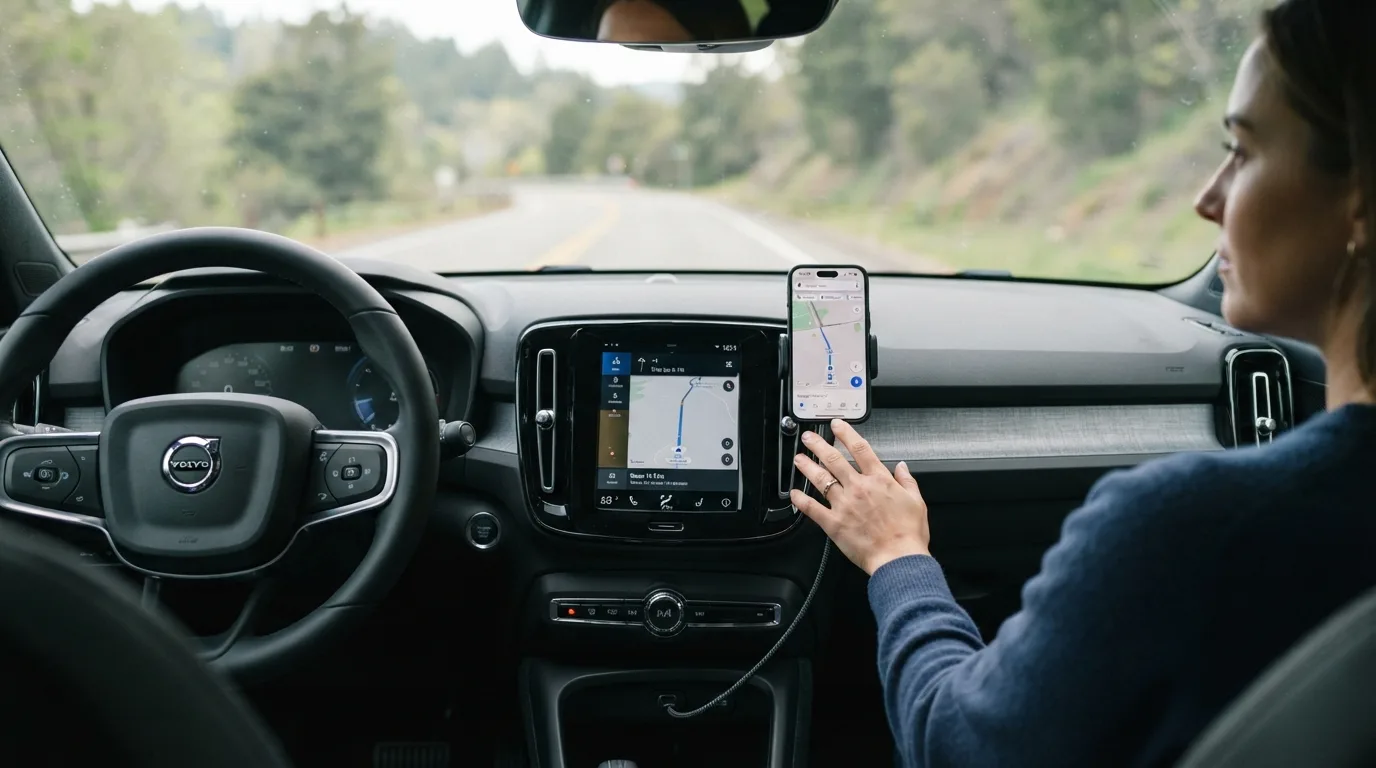
You plug in your phone, the car screen blinks, and nothing happens. Or it asks you to pair, then drops the connection. Ten minutes from now, you can have Android Auto actually running, with your maps, music and calls on the dashboard where they belong. Most people get stuck on one of two things: the cable or the head unit setting. This guide walks you through both, in order, and tells you how to fix the setup when it refuses to cooperate.
Budget roughly 10 to 15 minutes if your car already supports it. If you need a new cable or a firmware update, allow an hour and a trip to the shop.
What you need before you start
- An Android phone running a reasonably current version of Android (check Settings > About phone if you are unsure). Android Auto support has changed over the years, so confirm your phone is compatible on Google's Android Auto page.
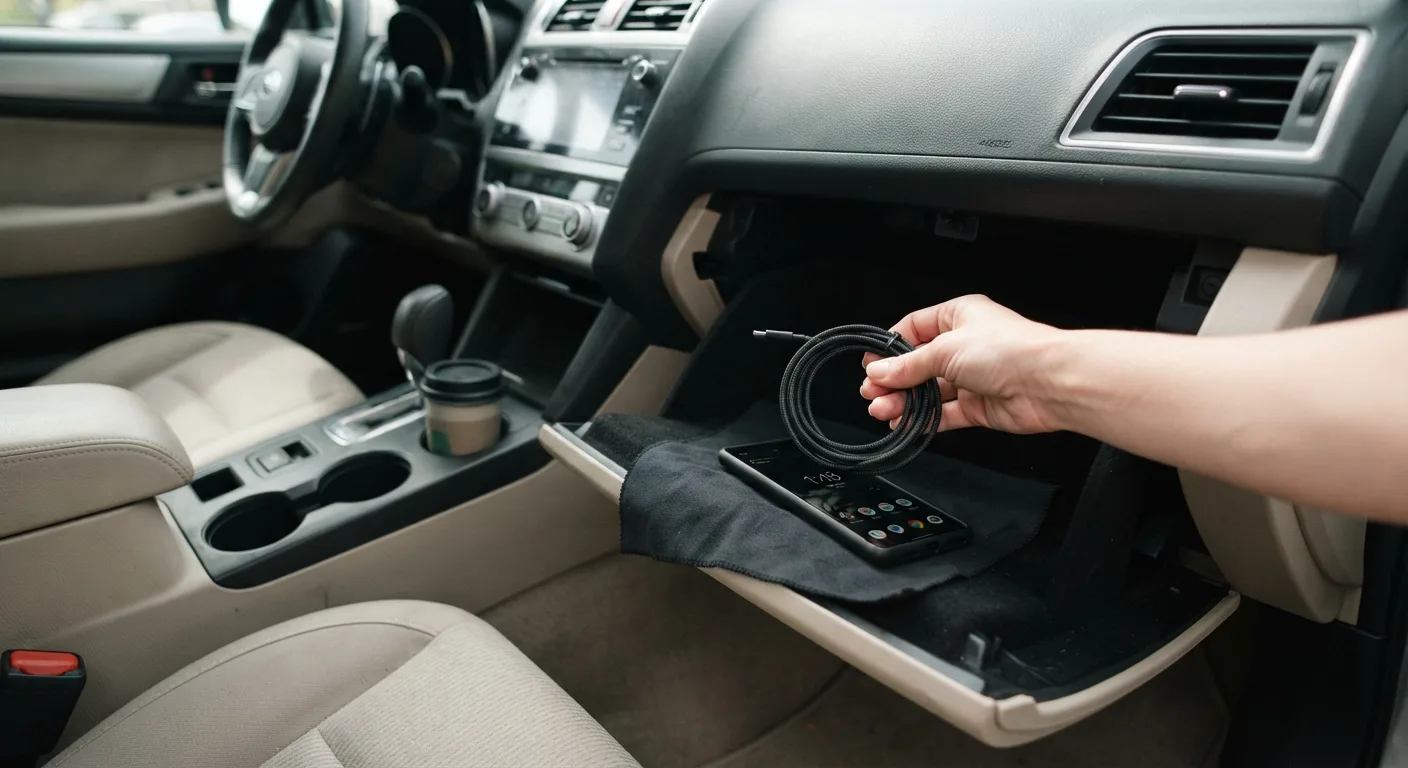
- A USB data cable. Not a charge-only cable from a gas station bin. This is the single most common reason activation fails.
- A car with a compatible infotainment system, either factory-fitted or an aftermarket head unit that supports Android Auto.
- Your phone's USB settings menu open, because you will likely need to switch from "charging only" to file transfer.
- Wi-Fi and Bluetooth on the phone for the wireless version, if your car supports it.
- Your owner's manual. Boring, I know. But the exact menu name for phone projection varies wildly between brands.
Step 1: Check that your car and phone actually support it
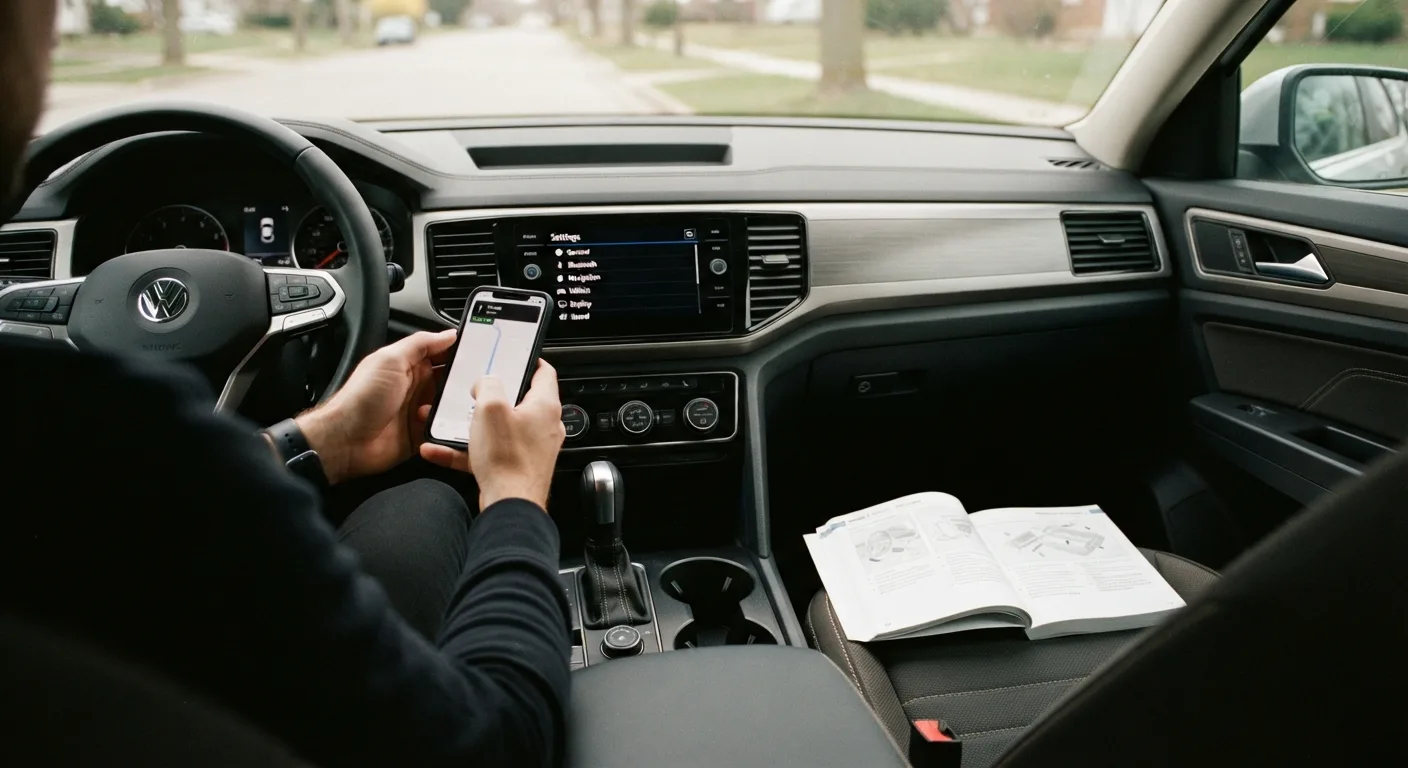
Before you touch a cable, confirm the basics. On the car side, look for "Android Auto" or "Smartphone Projection" in the infotainment settings, or check the owner's manual's connectivity section. On the phone side, open the Google Play Store and search for Android Auto. If it shows as installed or installable, you are in business.
Why it matters: some cars sold in the same year have the hardware but ship with the feature disabled, or only support Apple CarPlay on the base trim. Wasting an afternoon on a cable when the car simply does not support it is a special kind of frustration.
Tip: model year matters more than you would think. A 2016 car may support it while a 2015 of the same model does not. Verify by VIN with a dealer or the manufacturer's website if you are unsure.
Step 2: Install or update Android Auto on your phone
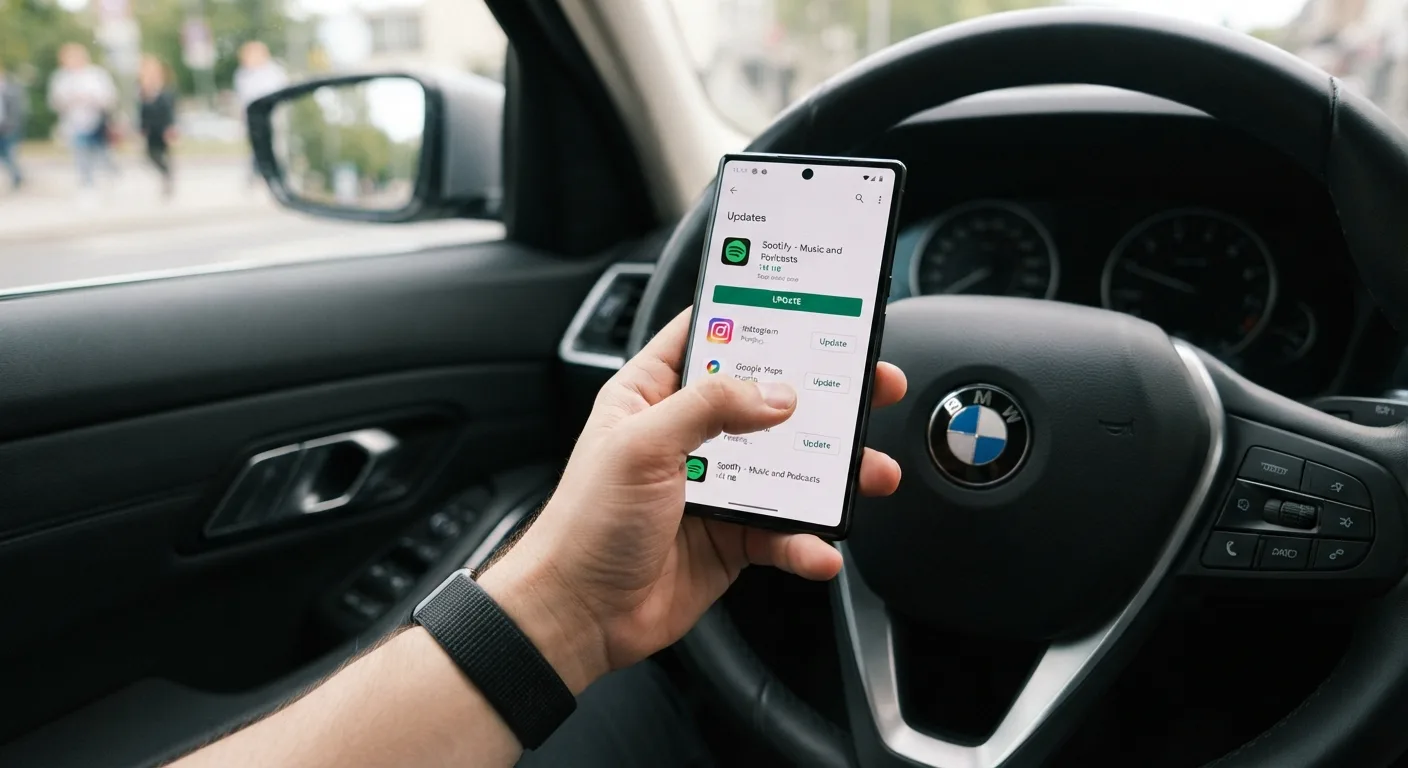
Open the Play Store, search Android Auto, and install or update it. On many newer phones it is built in, so you may only see an update option. Also update Google Maps and Google app while you are there, since Android Auto leans on both.
Why it matters: an outdated Android Auto build can fail to handshake with newer head units, and the error message it gives you is usually useless.
Tip: after updating, restart the phone. It clears stale background services and takes 30 seconds.
Step 3: Connect with a quality USB data cable
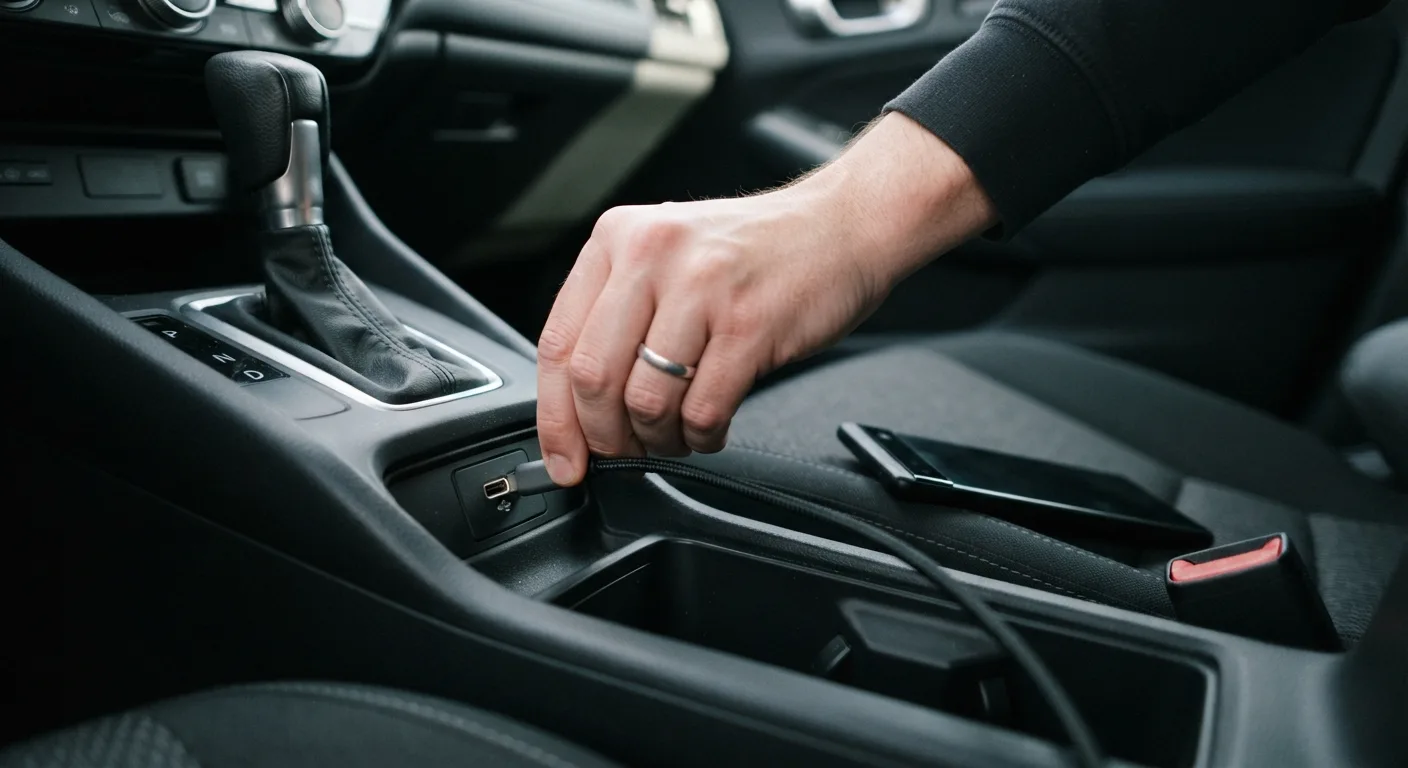
Plug one end into the phone and the other into the car's USB port, usually the one marked with a phone or data icon. Not the charging-only port in the console, if your car has both.
Why it matters: cheap cables carry power but not data. The phone charges, the screen stays blank, and you assume the car is broken. It is almost always the cable.
Tip: use the cable that came with your phone if you still have it. If you are buying one, look for a reputable brand and a short length, because long cables are more prone to voltage drop and dropouts. Expect to pay somewhere in the region of 10 to 25 dollars, approximate, depending on brand.
Step 4: Approve the phone's USB connection mode
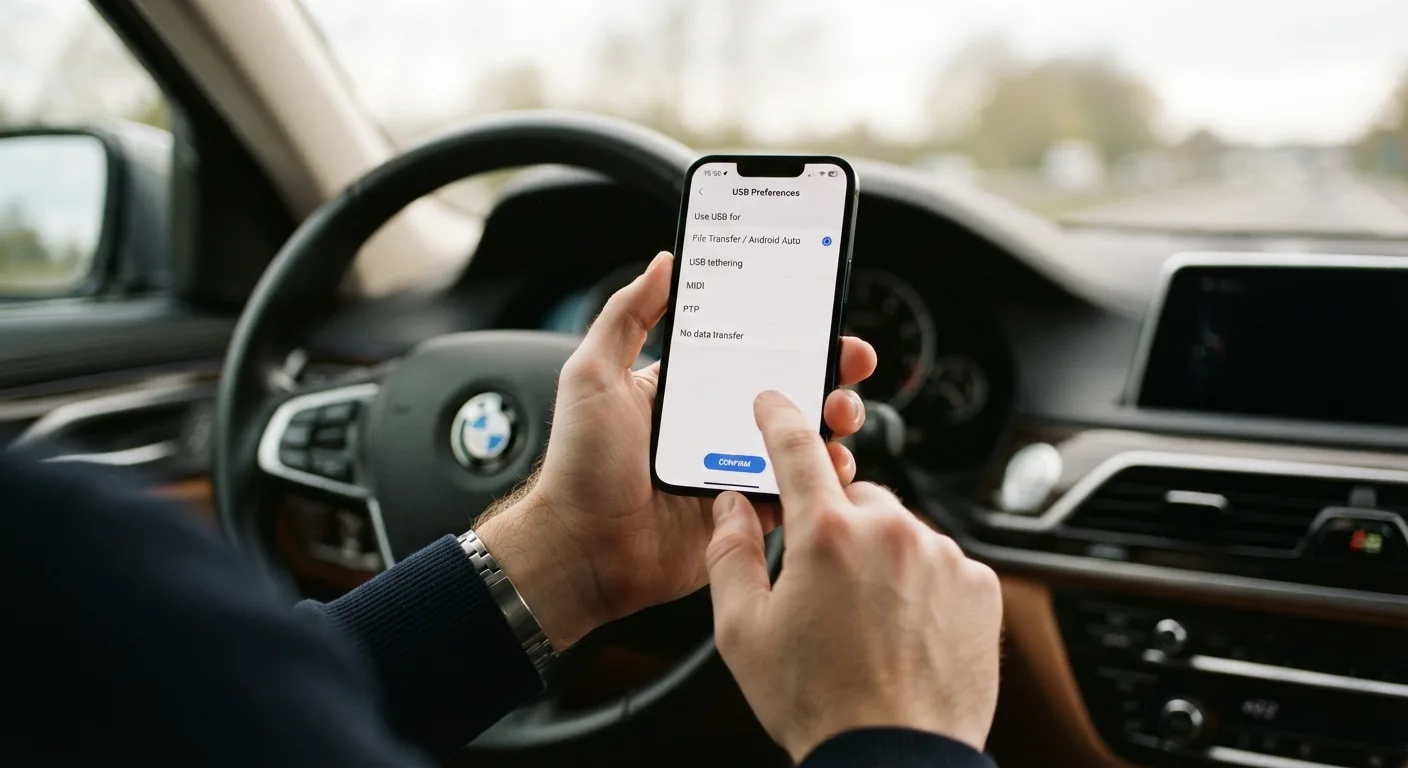
When you plug in, your phone may show a notification about USB preferences. Tap it and choose "File transfer" or "Android Auto" if that option appears. Some phones prompt you to allow Android Auto to run when the screen is locked, so tap Allow.
Why it matters: Android Auto needs a data connection, not just power. If the phone defaults to charging only, the car sees a dumb charger.
Tip: if the notification disappears before you can tap it, pull down the notification shade and look for the USB charging notification. It stays there.
Step 5: Accept the prompts on the car screen
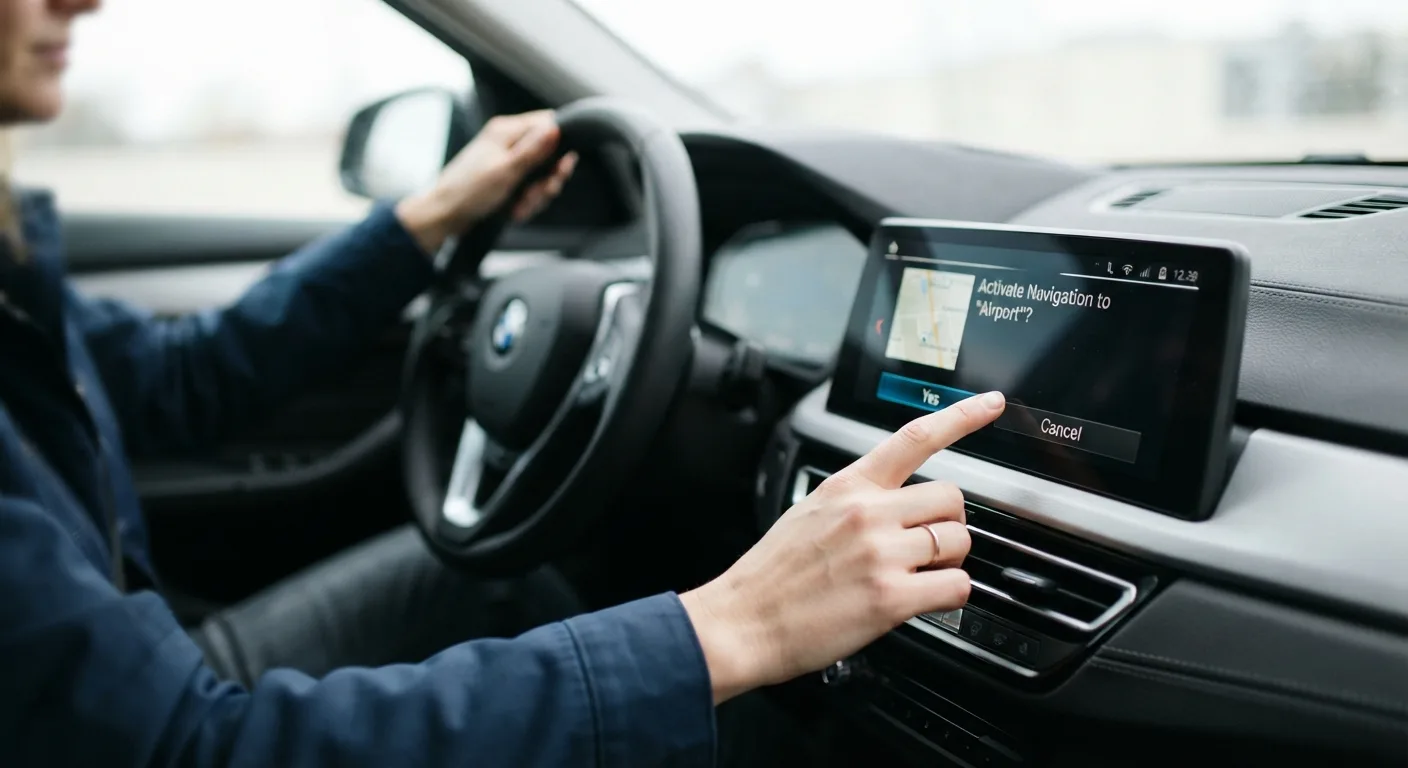
The head unit should now show an Android Auto prompt or launch automatically. Accept any on-screen terms, and if it asks you to pair Bluetooth, do that too. Wireless Android Auto uses Bluetooth for the initial handshake and Wi-Fi for the data.
Why it matters: skipping the Bluetooth pairing step is fine for a wired setup but will block the wireless one later.
Tip: if the car screen shows nothing at all, try a different USB port in the car and a different cable, in that order. Those two swaps fix the majority of "it will not activate" cases.
Step 6: Set up wireless Android Auto if your car supports it
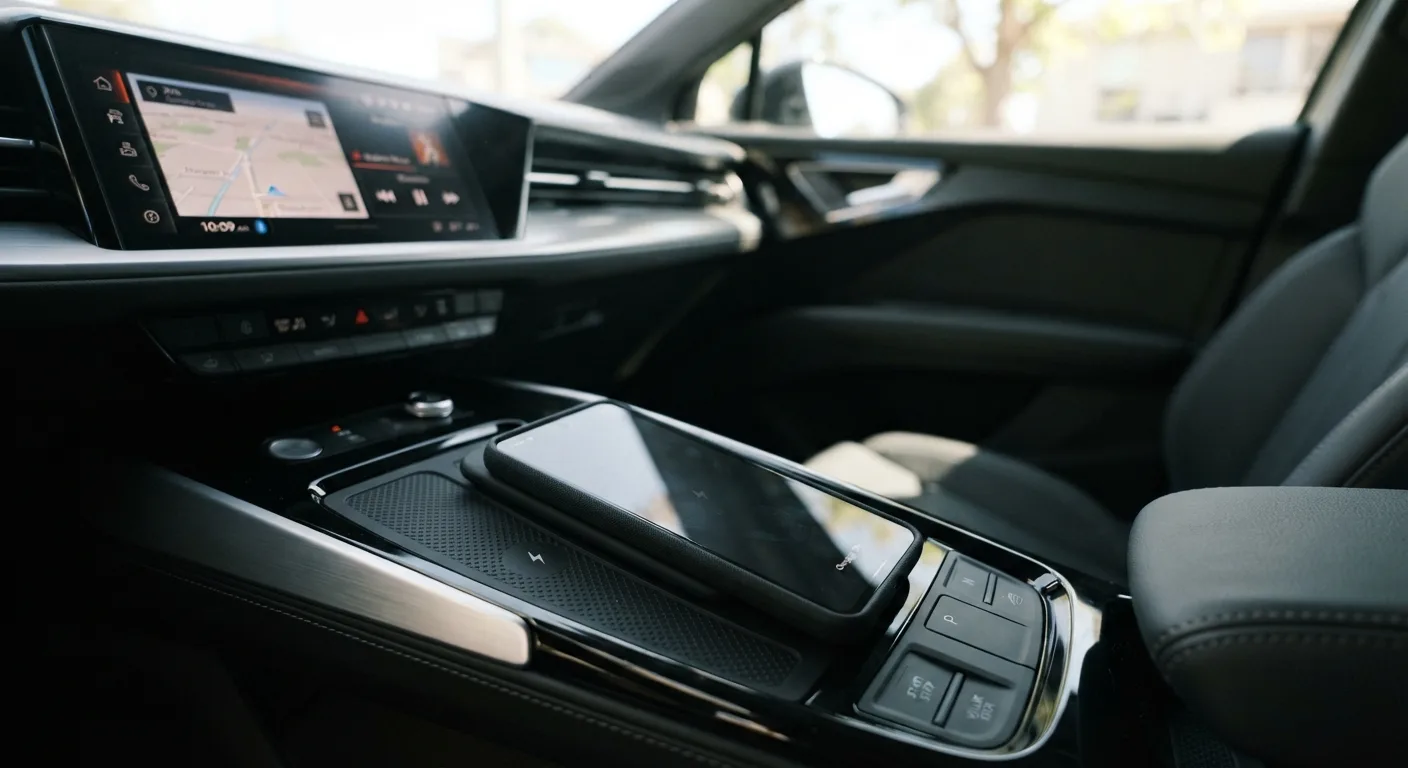
If your head unit supports wireless projection, you can skip the cable after the first setup. On the phone, go to Settings > Connected devices > Android Auto (or the Android Auto app settings) and enable wireless projection. Then pair the phone with the car over Bluetooth and follow the on-screen prompts.
Why it matters: wireless is convenient, but it drains the battery faster and can stutter in areas with crowded Wi-Fi. Many drivers keep a cable in the car for long trips.
Tip: wireless Android Auto needs both Bluetooth and 5 GHz Wi-Fi. If your phone keeps dropping, check that the car's Wi-Fi hotspot is not conflicting with your home network settings. A quick trip through the step-by-step car guides can help if you are also troubleshooting general infotainment gremlins.
Step 7: Test it before you drive away
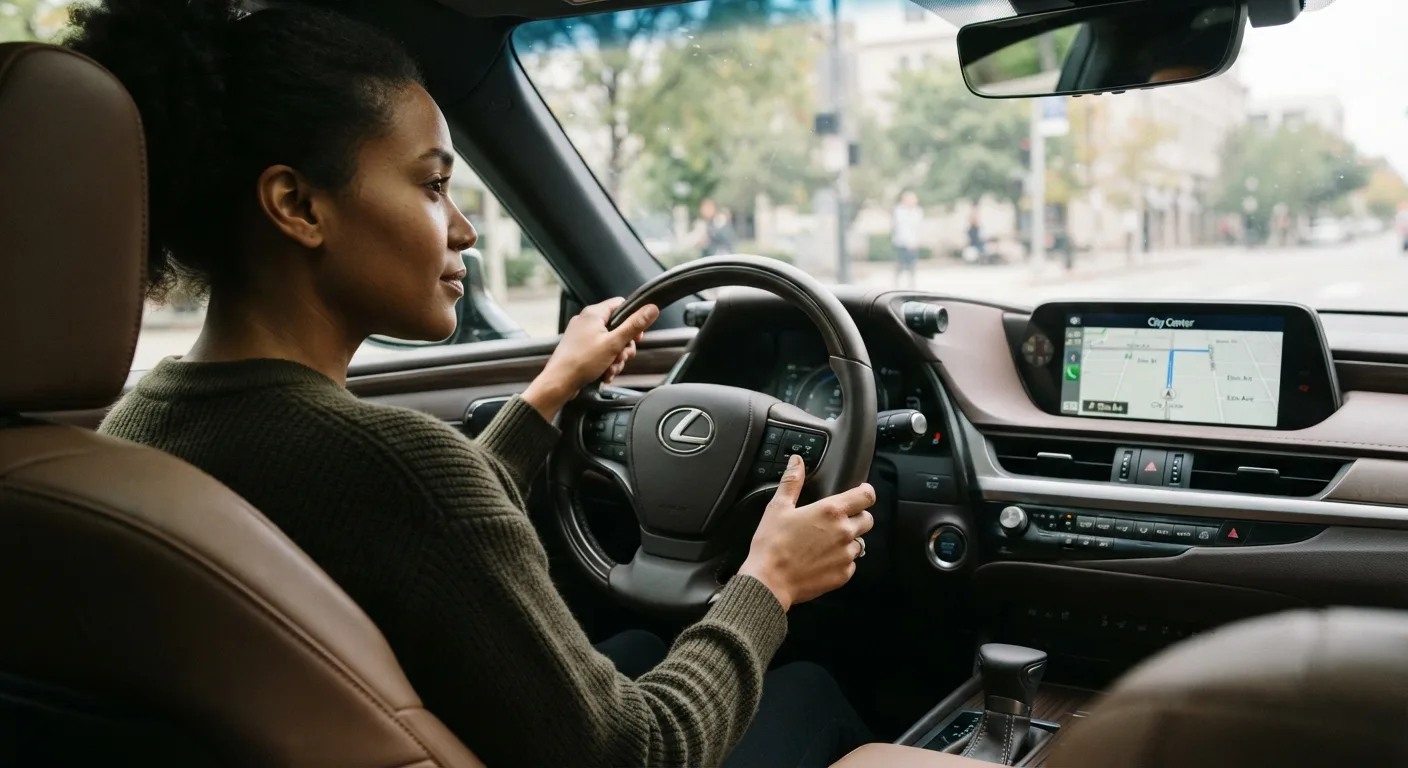
With the car in park, open Maps, play a track, and make a test call. Check that the steering wheel buttons control volume and skip. Then check voice input by pressing and holding the voice button.
Why it matters: you want to find out the microphone or steering controls do not work while parked, not at 60 mph.
Tip: if voice commands fail, the car's microphone may need permission in the phone settings, or the head unit firmware may need an update. Check the manufacturer's website for your specific model.
Step 8: Update the head unit firmware if activation keeps failing
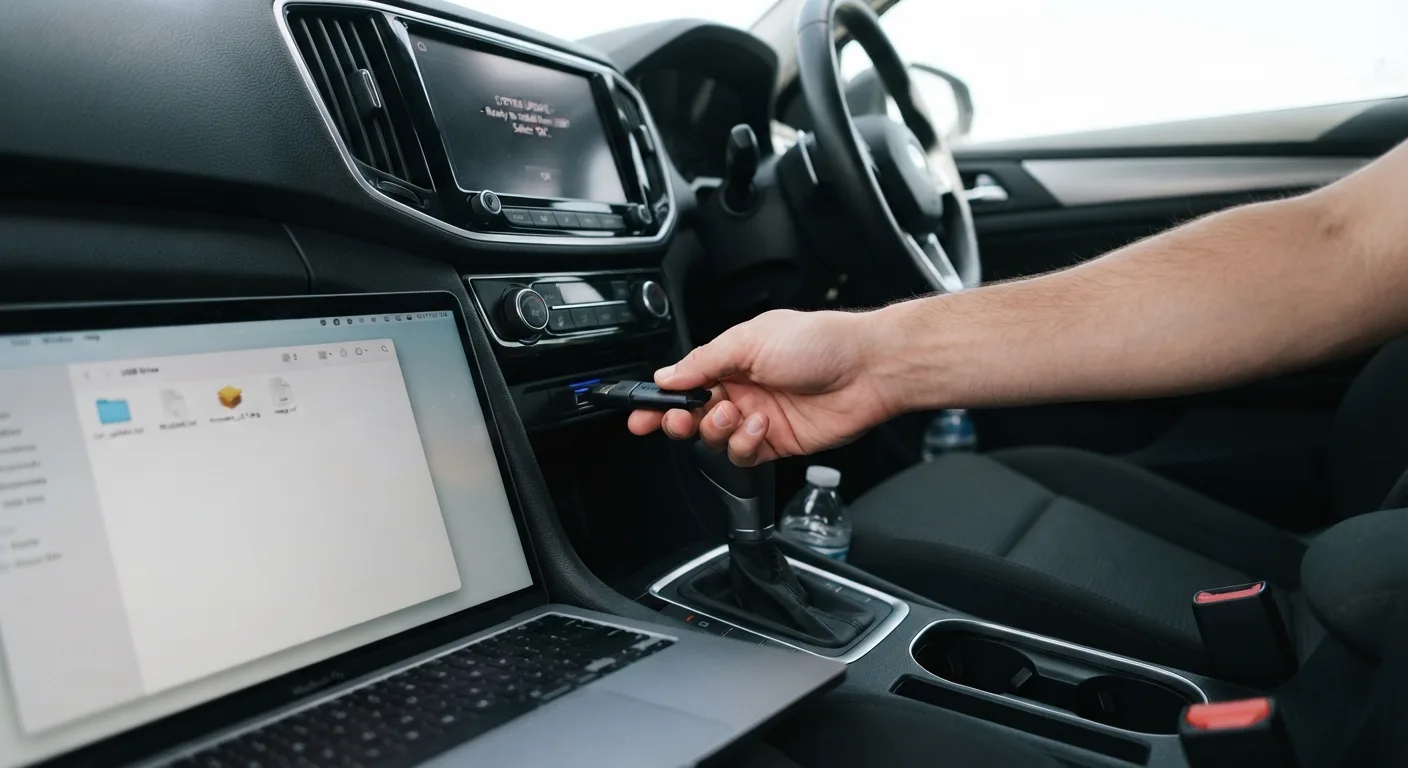
Many "Android Auto will not start" problems on older cars trace back to outdated infotainment firmware. Download the update from your manufacturer's website onto a USB stick (follow their instructions exactly, since the file format matters), then run the update with the engine running.
Why it matters: a firmware update can add Android Auto support to cars that shipped before it was standard, and it fixes handshake bugs on cars that already had it.
Tip: never run a head unit update with the engine off. If the battery dies mid-update, you can brick the unit, and a replacement is expensive. Keep the engine running or use a battery maintainer. Expect the update to take 20 to 40 minutes, approximate.
Pro tips
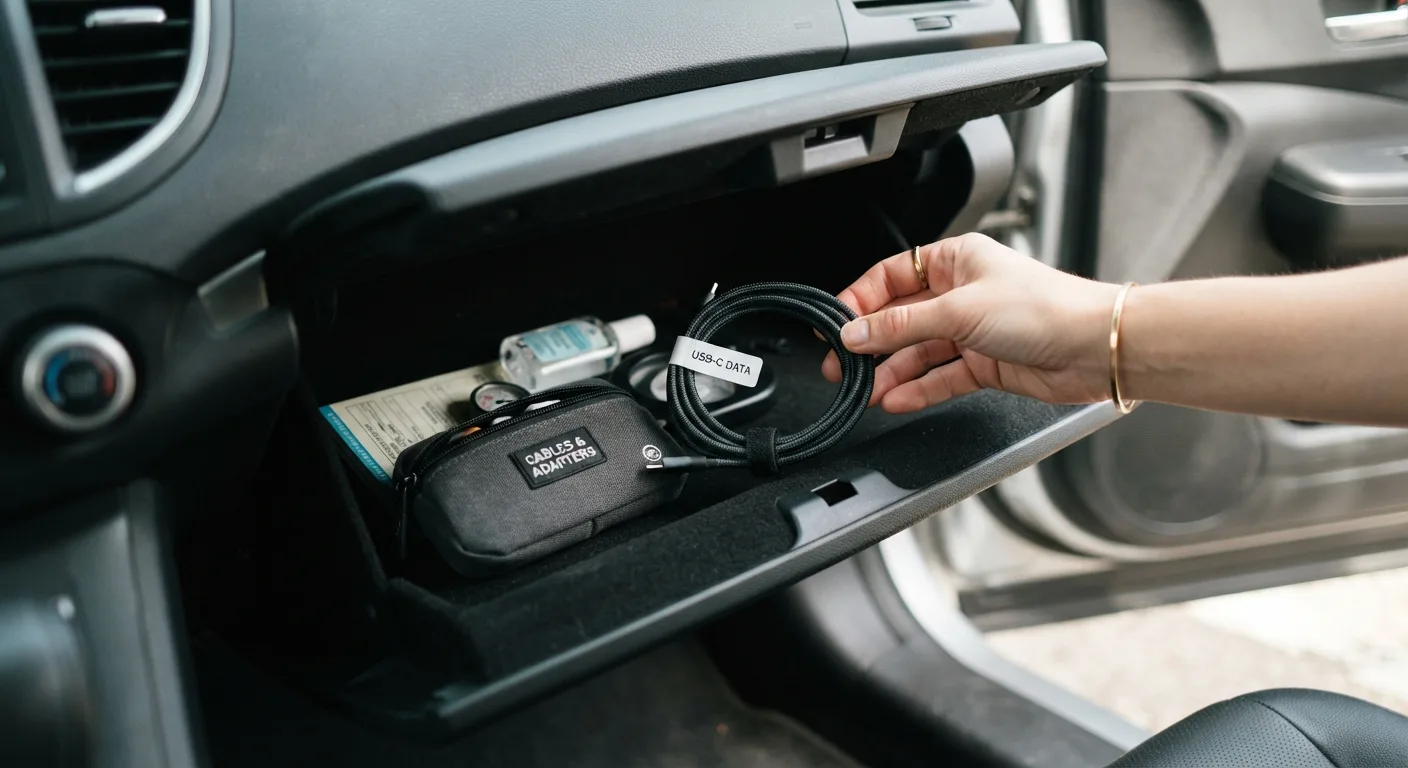
- Label your good cable. Keep one known-working data cable in the car and treat it as the only cable you use. The glovebox cable graveyard is where connections go to die.
- Turn off battery optimization for Android Auto in your phone's app settings. Some phones aggressively kill background services and cause random disconnects.
- Use a short USB-C or USB-A extension if the car's port is awkwardly placed, but keep the total cable run short. Long runs cause dropouts.
- Clear the Android Auto cache (Settings > Apps > Android Auto > Storage > Clear cache) if the interface freezes. It is a two-minute fix that solves a surprising number of glitches.
- Check the car's phone projection setting after any dealer service. Some shops reset the infotainment to factory defaults, which turns Android Auto off.
- Use the free car tools to keep track of maintenance while you are already poking around the dashboard, especially if your car is due for a service.
Common pitfalls
Using a charge-only cable. The number one cause of a blank screen. The phone charges, the car does nothing. Swap to a data cable before you blame the head unit.
Skipping the USB mode prompt. If the phone defaults to charging only, Android Auto never starts. Set file transfer mode and allow the app when prompted.
Ignoring the car's software version. Old firmware causes failed handshakes and random disconnects. Check the manufacturer's site for your model year and update if one is available.
Assuming every USB port works. Many cars have one data-capable port and one charge-only port. Read the symbols next to the ports, or check the manual.
Forgetting the Bluetooth pairing. Wireless Android Auto needs the Bluetooth handshake first. If you skip it, the car will not find the phone.
Useful resources
- Google's official Android Auto support page for compatibility and setup help.
- Your car manufacturer's owner's manual and infotainment update page.
- Google Play Store for app updates.
- Our expert car tips for keeping the rest of the car in shape while you are in the driver's seat.
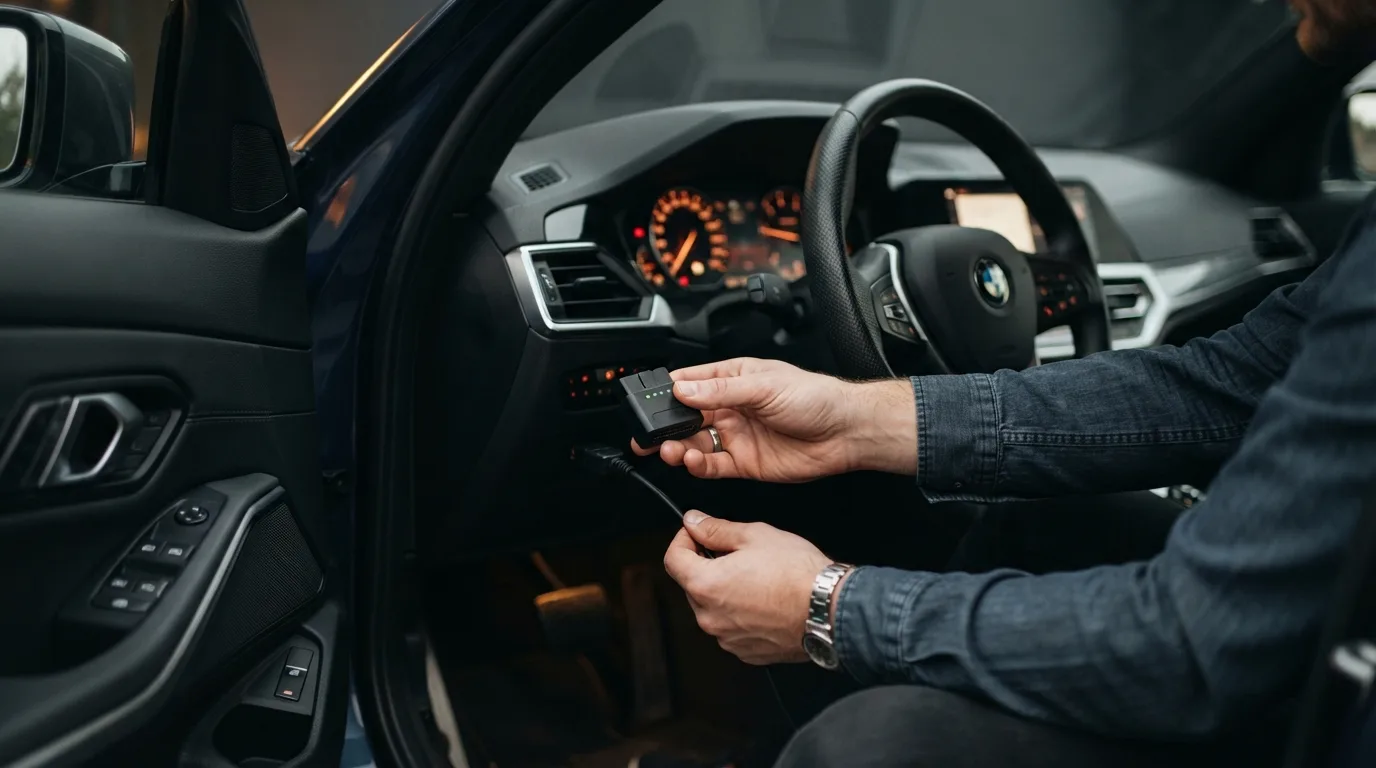
- If your car throws a warning light while you are testing things, run the free OBD code lookup before you panic. It gives you a plain-English starting point on what the code means and what to check next.
FAQ
Why does Android Auto not show up on my car screen? Start with the cable. Try a known data cable in the car's data-capable USB port. If that fails, check that Android Auto is installed and updated on the phone, and that the car actually supports it. Verify compatibility by VIN if you are unsure.
Can I activate Android Auto without a cable? Yes, if your car supports wireless Android Auto. You pair over Bluetooth and the phone connects over Wi-Fi. Most cars built before roughly 2020 do not support wireless, so check your manual. Wired is still more reliable for long trips.
Does Android Auto work on any Android phone? Not every phone and Android version is supported, and requirements have shifted over the years. Check Google's Android Auto support page for current compatibility before you buy cables or accessories.
How much does it cost to add Android Auto to an older car? If your car does not support it, an aftermarket head unit with Android Auto starts around a couple hundred dollars for the unit itself, plus installation if you do not fit it yourself. Prices vary widely, so get a quote from a local shop. A firmware update from the manufacturer is often free if your car is eligible.
My Android Auto keeps disconnecting. What is wrong? Usually the cable, the USB port, or the phone's battery optimization settings. Try a short, known-good data cable, switch ports, and disable battery optimization for Android Auto. If it still drops, check for a head unit firmware update. If a warning light comes on at the same time, check it with the OBD code lookup so you know whether it is related.
Final word
Activation is usually a cable problem dressed up as a car problem. Work through the steps in order, keep one good cable in the car, and you will spend your time driving instead of fiddling with the dashboard. If something still refuses to cooperate, the AI mechanic assistant can help you talk through the specifics.